

Introduction
VMware vSAN can provide more than traditional VM storage. With the vSAN iSCSI Target Service, vSAN storage can also be presented to external systems as standard iSCSI block storage.
This is particularly useful when an application or operating system requires shared block storage but cannot directly consume a vSAN datastore.
In this guide, I will walk through the configuration of the vSAN iSCSI Target Service in VMware Cloud Foundation (VCF) 9.1, create an iSCSI LUN backed by vSAN, and consume that LUN from a Windows Server environment.
In my particular scenario, the iSCSI storage will be used by Windows Server Failover Clustering (WSFC) for a SQL Server deployment.
The important point is that the iSCSI storage is still backed by vSAN. The Windows servers simply consume the storage using the standard iSCSI protocol.
1. Plan the vSAN iSCSI Network
Before enabling the iSCSI Target Service, the networking should be planned.
In this configuration, I use a dedicated VMkernel adapter for iSCSI traffic. The VMkernel interface is attached to a distributed port group on the vSphere Distributed Switch.
The same distributed switch is used for the vSAN-related networking, while VLAN separation is performed at the network level.
The exact VLAN IDs will depend on your environment.
Using VLANs allows the physical network infrastructure and the distributed switch to carry multiple types of traffic while keeping the traffic logically separated.
Important: Do not assume that because the traffic uses the same physical uplinks or distributed switch it should use the same VLAN. VLAN separation should still be used where appropriate.
2. Create the iSCSI VMkernel Network
The first step is to create a VMkernel adapter that will handle the iSCSI traffic.
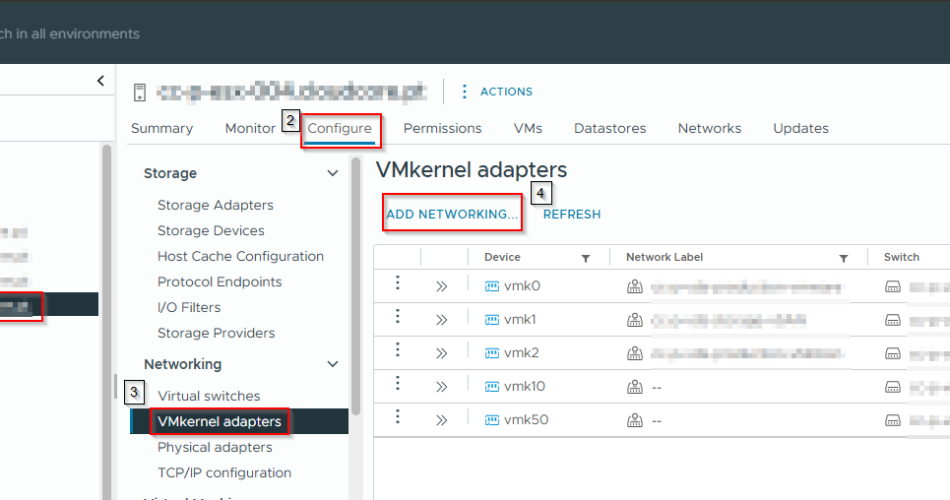
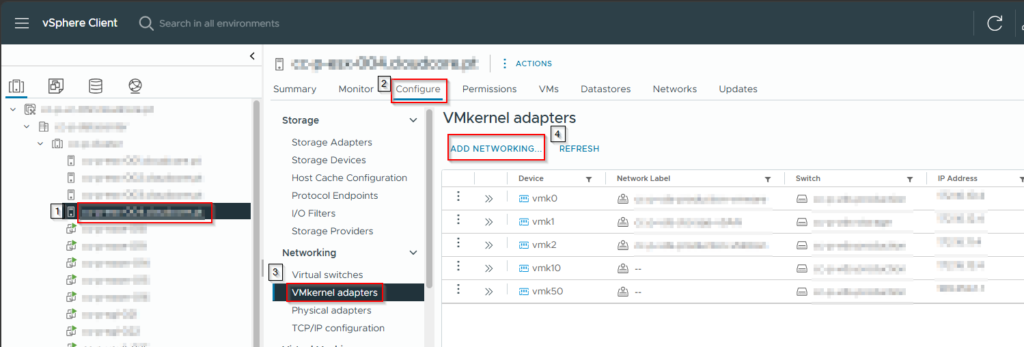
From the vSphere Client, select the ESXi host and navigate to:
Configure → Networking → VMkernel adapters
Select Add Networking.
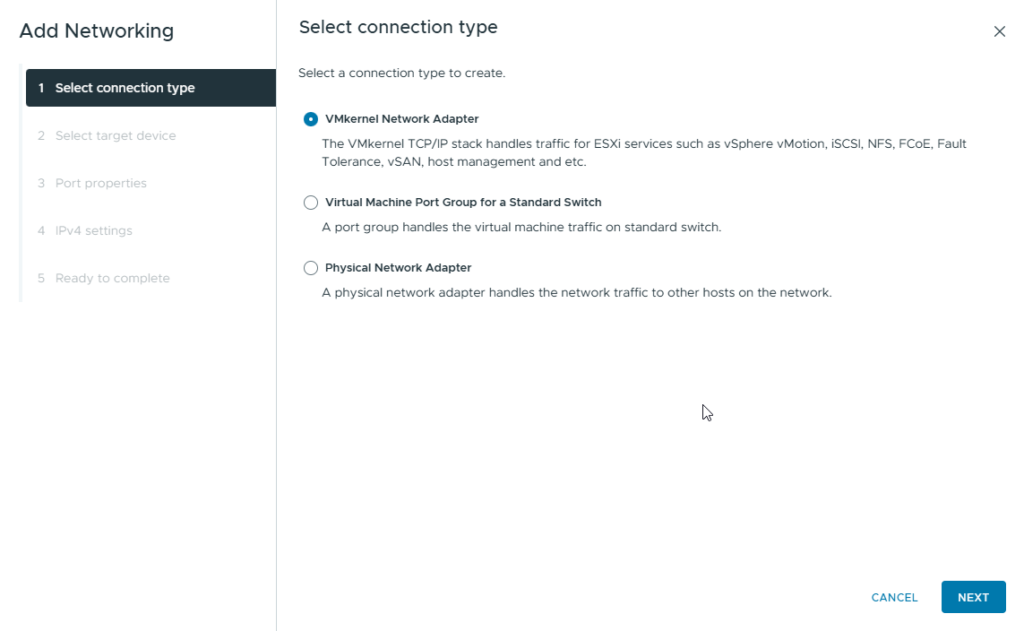
The wizard starts by asking what type of networking needs to be created.
Select:
VMkernel Network Adapter
This creates a VMkernel interface that can be used by ESXi services such as vMotion, management, vSAN and iSCSI.
3. Select the Distributed Port Group
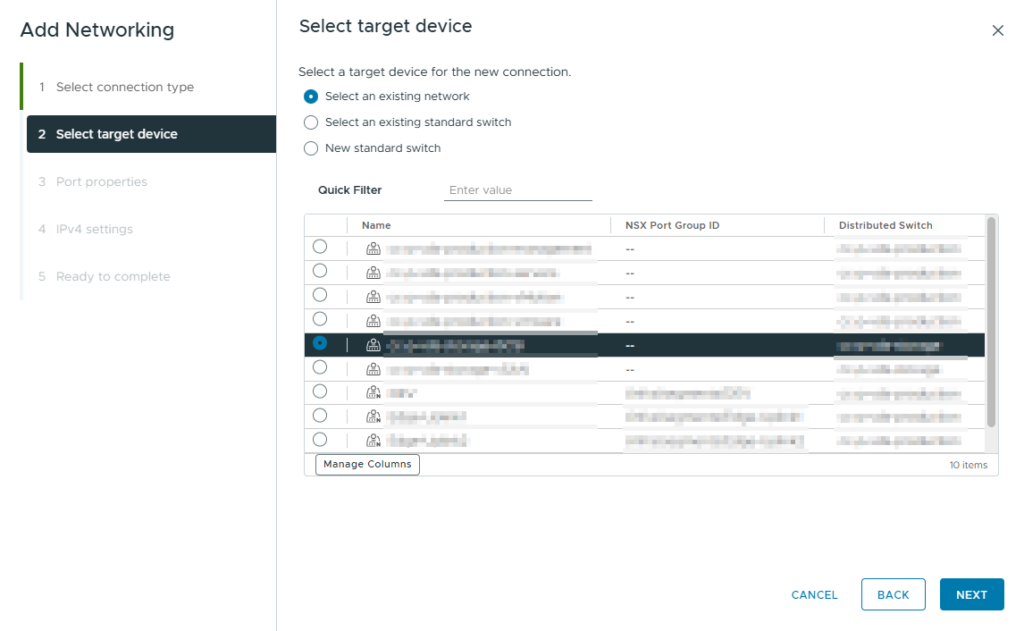
The next step is to select the network where the VMkernel adapter will be connected.
Select the existing distributed port group that will be used for the iSCSI network.
In this environment, the distributed switch is responsible for carrying the storage traffic, while the appropriate VLAN is configured on the network.
The important requirement is that the underlying physical network provides connectivity between the vSAN iSCSI target and the systems that will act as iSCSI initiators.
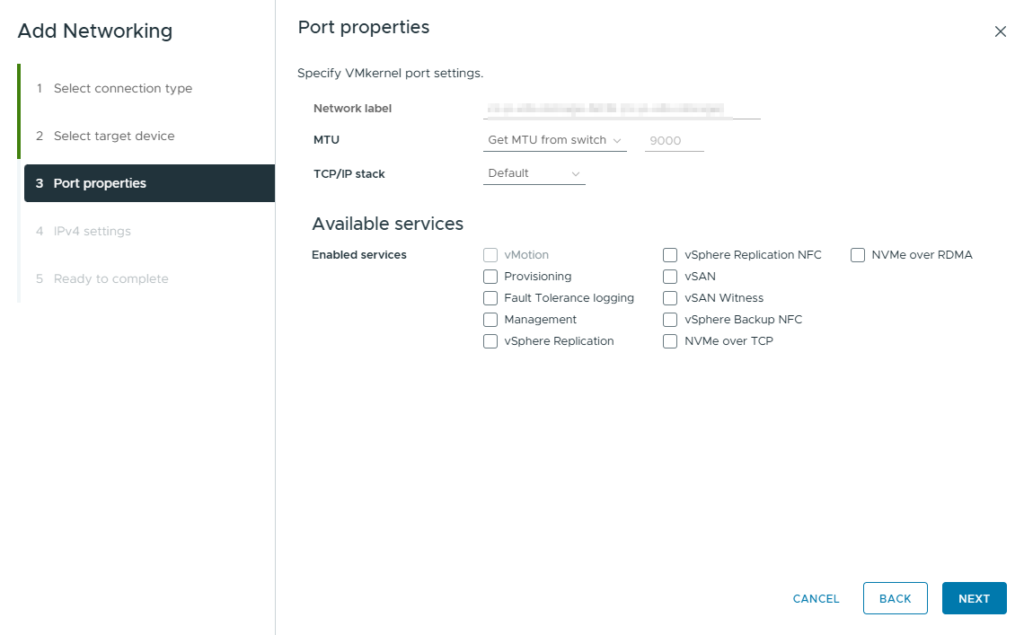
4. Configure the VMkernel Port Properties
Configure the port properties for the new VMkernel adapter.
The MTU in this configuration is set to 9000 bytes.
This is commonly used for storage networks where jumbo frames are supported end-to-end.
However, jumbo frames should only be enabled when the entire network path supports the configured MTU.
That includes:
- ESXi VMkernel interface
- vSphere Distributed Switch
- Physical NICs
- Physical switches
- VLAN infrastructure
- Routing infrastructure, if applicable
- iSCSI initiator network interface
A mismatch in MTU can cause connectivity and performance problems.
For this VMkernel adapter, enable the vSAN service only if the adapter is also intended to carry vSAN traffic. If it is dedicated specifically to iSCSI, the important point is that the vSAN iSCSI Target Service is configured to use this VMkernel network.
In my configuration, the network is used for storage traffic and the VLAN configuration keeps the different traffic types logically separated.
5. Configure the VMkernel IP Address
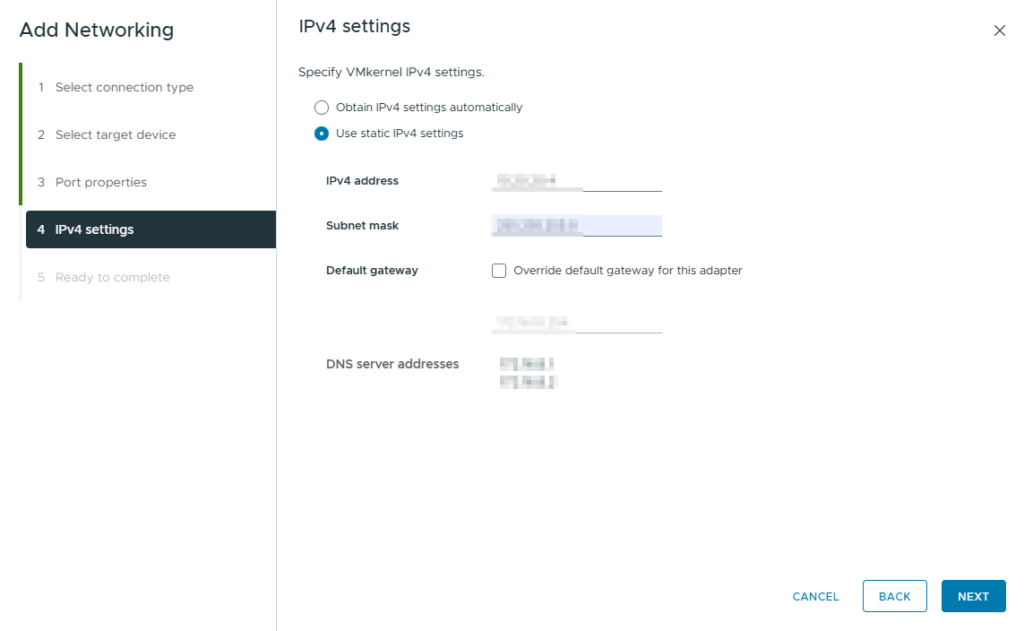
The next step is to assign an IP address to the VMkernel adapter.
Use a static IPv4 configuration.
For example:
IP address:       192.168.x.x
Subnet mask:      255.255.255.0
Default gateway:  Not required
A default gateway normally isn’t necessary for a dedicated storage network when all iSCSI communication is contained within the same subnet.
Avoid adding unnecessary gateways to storage VMkernel interfaces.
The iSCSI network should ideally be a controlled storage network with predictable connectivity and minimal dependencies.
6. Repeat the VMkernel Configuration Across the Cluster
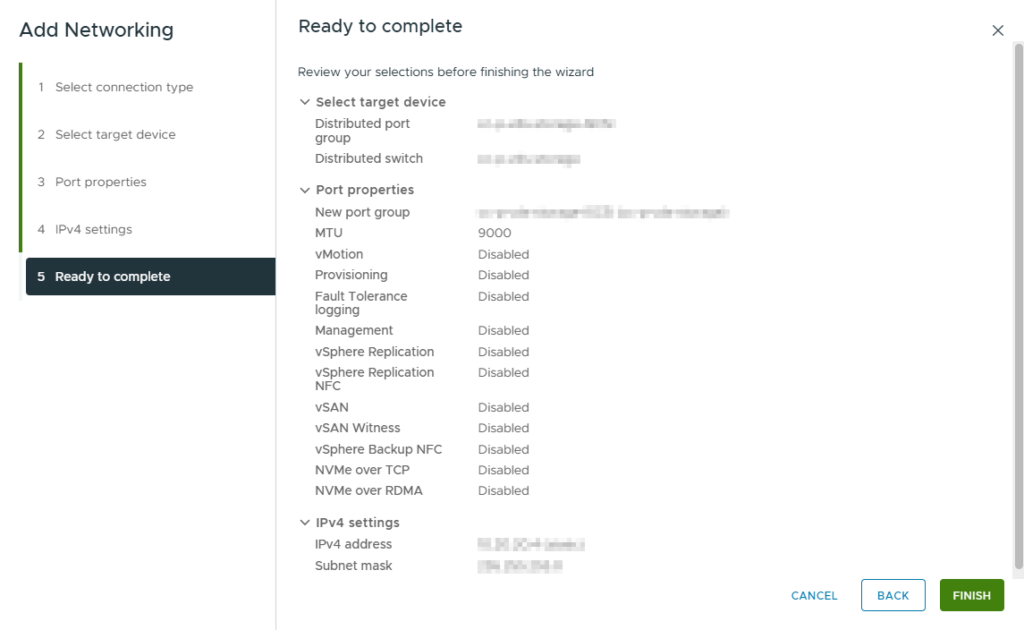
Because vSAN is a cluster-level service, the networking configuration needs to be consistent across the ESXi hosts participating in the vSAN cluster.
The VMkernel networking should therefore be configured consistently across the hosts.
For example:
ESXi01 → iSCSI VMkernel → 192.168.50.11
ESXi02 → iSCSI VMkernel → 192.168.50.12
ESXi03 → iSCSI VMkernel → 192.168.50.13
ESXi04 → iSCSI VMkernel → 192.168.50.14
The actual IP addresses obviously depend on your environment.
Consistency is particularly important for vSAN services because the service can move between hosts and the storage architecture should not depend on a single ESXi host.
7. Verify the VMkernel Adapters
After creating the VMkernel networking, verify the configuration under:
Host → Configure → Networking → VMkernel adapters
You should now see the newly created VMkernel adapter alongside the existing interfaces.
In my environment, the host has multiple VMkernel interfaces, each serving a different purpose.
For example:
vmk0  → Management
vmk1  → vMotion
vmk2  → vSAN
vmk3  → iSCSI
The exact VMkernel numbering isn’t important. What matters is that the correct network is selected for the iSCSI Target Service.
8. Enable the vSAN iSCSI Target Service
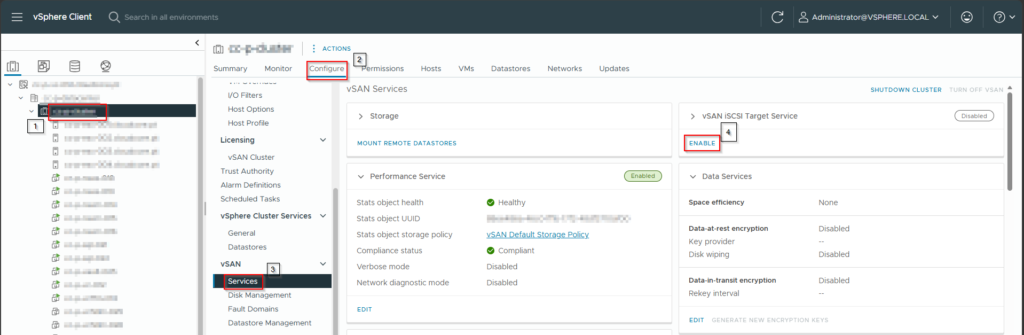
Once the networking is ready, go to the vSAN configuration:
Cluster → Configure → vSAN → Services
Locate:
vSAN iSCSI Target Service
If the service is disabled, select Enable.
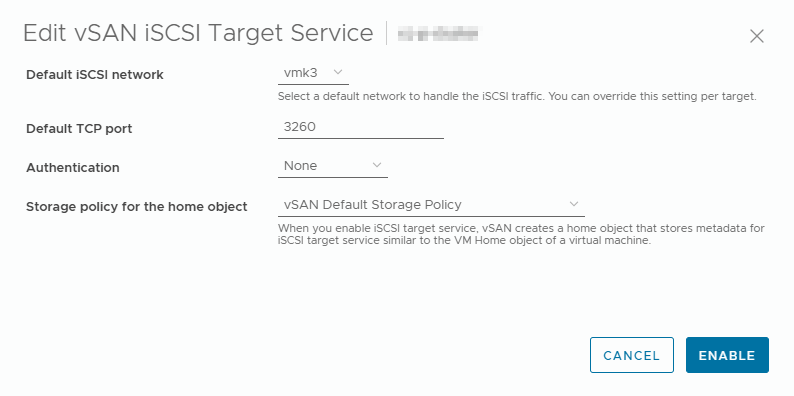
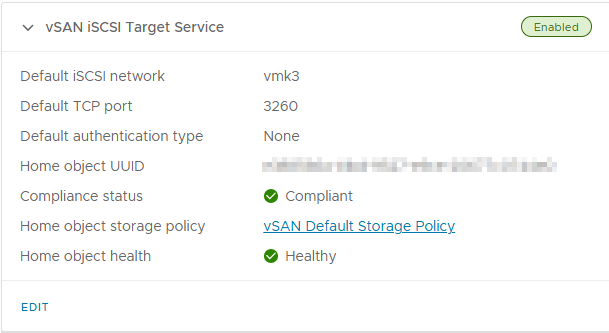
The iSCSI Target Service configuration allows you to specify the default network, TCP port, authentication method and storage policy used by the service.
The standard iSCSI TCP port is:
3260In this example, the service uses:
Network:       vmk3
TCP Port:      3260
Authentication: None
For production environments, authentication and additional security controls should be considered according to the organization’s requirements.
9. Configure the vSAN iSCSI Target Service
The iSCSI Target Service can be configured from the service settings.
The default iSCSI network determines which VMkernel network handles iSCSI traffic.
In my configuration, this is the VMkernel interface dedicated to the iSCSI/storage network.
The default TCP port remains:
3260The service also allows a storage policy to be selected for the home object.
The home object stores the metadata associated with the iSCSI Target Service.
Using an appropriate vSAN storage policy ensures that this object receives the desired availability and storage characteristics.
10. Create an iSCSI Target
With the iSCSI Target Service enabled, navigate to:
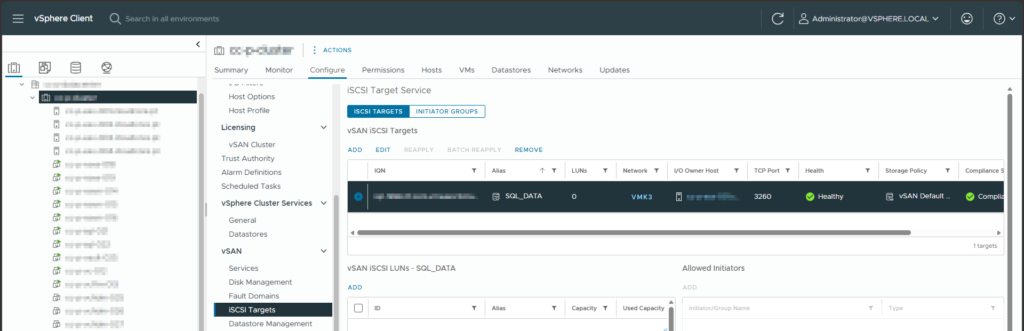
vSAN → iSCSI Targets
Select:
Add
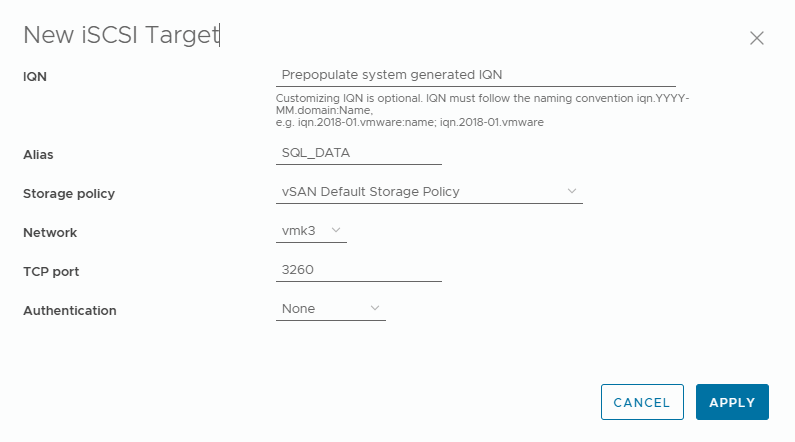
A new iSCSI Target can now be created.
The target configuration includes:
- IQN
- Alias
- Storage policy
- Network
- TCP port
- Authentication
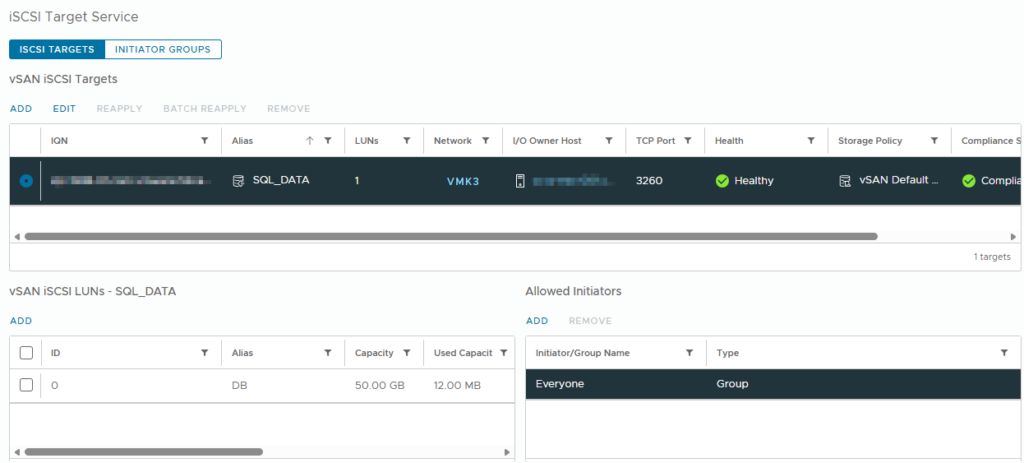
For this example, I created a target with the alias:
SQL_DATAThe network is the previously configured iSCSI VMkernel network, and the TCP port is:
3260The vSphere Client can automatically generate the iSCSI Qualified Name (IQN), which is generally the easiest option unless your environment has a specific naming standard.
11. Create an iSCSI LUN
After creating the target, the next step is to create the storage that will be presented through it.
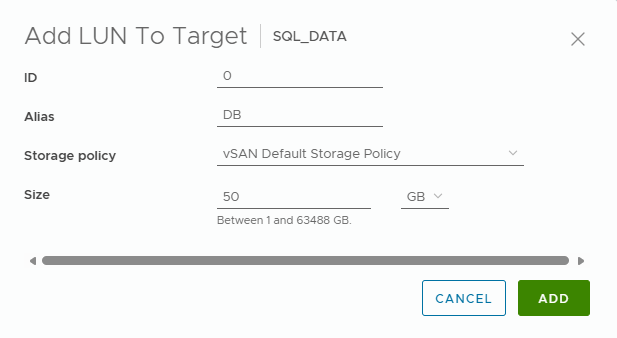
Select the newly created target and add a new LUN.
In this example, the LUN has:
LUN ID:          0
Alias:           DB
Capacity:        50 GB
Storage Policy:  vSAN Default Storage Policy
The capacity can be adjusted according to the workload.
The important concept here is that the LUN is not a physical disk directly attached to the ESXi host.
The LUN is an object backed by the vSAN datastore.
The vSAN storage layer provides the underlying storage, while the iSCSI Target Service presents that storage using the iSCSI protocol.
12. Configure Initiator Access
The iSCSI Target Service also allows you to control which initiators can access the target.
In this example, the target is configured with:
Allowed Initiator: EveryoneThis is convenient for a lab or testing environment.
For a production SQL Server environment, I would recommend restricting access to the specific iSCSI initiators belonging to the WSFC nodes.
For example:
SQL01 IQN → Allowed
SQL02 IQN → Allowed
Other systems → Denied
This prevents unrelated systems from discovering or accessing the SQL storage.
13. Connect Windows Server to the vSAN iSCSI Target
Once the vSAN iSCSI target and LUN are created, the Windows Server nodes can consume the storage.
On Windows Server, open:
iSCSI Initiator
Configure the iSCSI initiator to connect to the IP address of the vSAN iSCSI target.
The standard iSCSI port is:
TCP 3260After connecting to the target, Windows should discover the LUN presented by vSAN.
The storage can then be brought online and initialized through Windows Disk Management.
14. Verify the Disk in Windows
After the iSCSI connection is established, the new disk should appear in Windows.
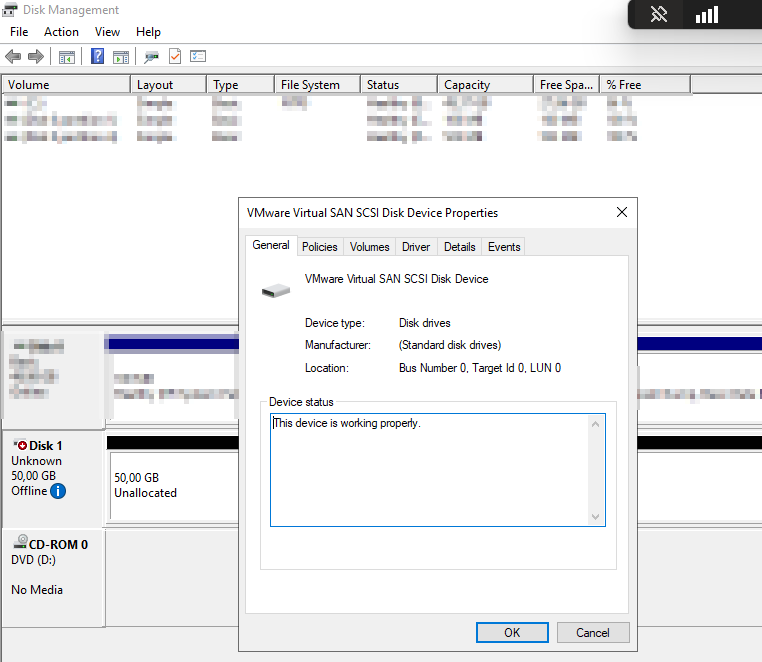
In Disk Management, the device is presented as a:
VMware Virtual SAN SCSI Disk Device
This is expected.
The disk can then be initialized and formatted according to the requirements of the workload.
For a WSFC/SQL deployment, however, the disk configuration should follow Microsoft’s requirements for the specific SQL Server and Windows Server versions being deployed.
Using vSAN iSCSI Storage for SQL Server WSFC
This is where the configuration becomes particularly useful.
A SQL Server Windows Server Failover Cluster can use shared storage that is accessible from the cluster nodes.
Both SQL Server nodes can access the shared storage through their iSCSI initiators.
This allows the storage to remain centralized within the vSAN cluster while presenting it to the guest operating systems using a standard storage protocol.
vSAN iSCSI vs VMFS/vSAN Datastores
It is important to understand the difference between normal vSAN VM storage and vSAN iSCSI storage.
With a normal vSAN datastore:
VM
 │
 └── VMDK
      │
      └── vSAN
The virtual machine consumes a VMDK directly from the vSAN datastore.
With vSAN iSCSI:
Windows Server
      │
 iSCSI Initiator
      │
 TCP 3260
      │
vSAN iSCSI Target
      │
   vSAN LUN
      │
    vSAN
The operating system sees a block device instead of a VMDK.
This distinction is important for workloads that require shared block storage or need to interact with storage at the guest operating-system level.
Network Design Considerations
For a production deployment, I would strongly recommend treating the iSCSI network as a proper storage network.
At minimum, consider:
- Dedicated storage VLANs
- Jumbo frames if supported end-to-end
- Redundant physical network paths
- Consistent MTU configuration
- Adequate bandwidth
- Low latency
- Firewall rules restricted to required traffic
- Initiator access controls
- Monitoring of the iSCSI service
If multiple physical paths are available, the design should also consider how redundancy is provided between the Windows hosts, the physical network and the vSAN cluster.
Simply having two network interfaces does not automatically provide storage redundancy; the entire path needs to be designed accordingly.
Security Considerations
The screenshots in this configuration use no iSCSI authentication, which is convenient for a lab environment.
For production deployments, consider using authentication where appropriate, together with network-level access control.
The iSCSI network should not be exposed unnecessarily to other systems.
For example:
SQL01 ─────┐
           │
SQL02 ─────┼── iSCSI VLAN ── vSAN iSCSI Target
           │
SQL03 ─────┘
Only the required SQL/WSFC nodes should have access to the storage network.
If the environment contains multiple independent workloads, consider using separate targets and appropriate initiator groups rather than giving every system access to every LUN.
Final Result
After completing the configuration, the result is a vSAN-backed iSCSI storage service that can be consumed by external operating systems.
The complete flow is:
              VMware Cloud Foundation 9.1
                         │
                     vSAN Cluster
                         │
                 ┌───────┴───────┐
                 │               │
              vSAN VM        iSCSI Target
                                 │
                              Target
                                 │
                              LUN 0
                                 │
                              50 GB
                                 │
                         iSCSI Network
                                 │
                    ┌────────────┴────────────┐
                    │                         │
                 SQL01                     SQL02
                    │                         │
                 iSCSI                     iSCSI
                 Initiator                 Initiator
                    │                         │
                    └────────── WSFC ─────────┘
The advantage of this architecture is that the storage remains managed by vSAN, while the application servers consume it using a standard iSCSI interface.
This makes the vSAN iSCSI Target Service particularly useful for workloads such as Windows Server Failover Clustering, SQL Server configurations and other applications that require shared block storage but cannot directly consume a vSAN datastore.
Conclusion
The vSAN iSCSI Target Service provides a relatively straightforward way of exposing vSAN storage outside the traditional virtual-machine storage model.
In VCF 9.1, the configuration consists of four main stages:
- Create the iSCSI VMkernel networking.
- Enable and configure the vSAN iSCSI Target Service.
- Create an iSCSI target and LUN backed by vSAN.
- Connect the Windows Server iSCSI initiators and consume the shared storage.
For my environment, this provides the shared block storage required by SQL Server WSFC, while keeping the underlying storage inside the existing vSAN infrastructure.
The same architecture can also be useful for other workloads that require an iSCSI-accessible block device rather than a traditional virtual disk.
